File Annual Organization Report in eScribe
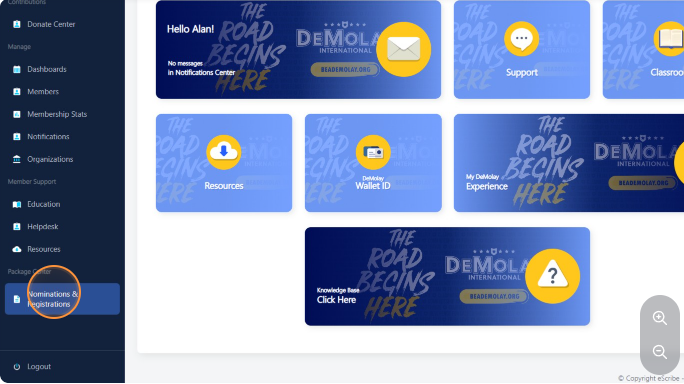
Navigate to https://escribe.demolay.org/home/ and click "Nominations & Registrations" from the left hand side menu.
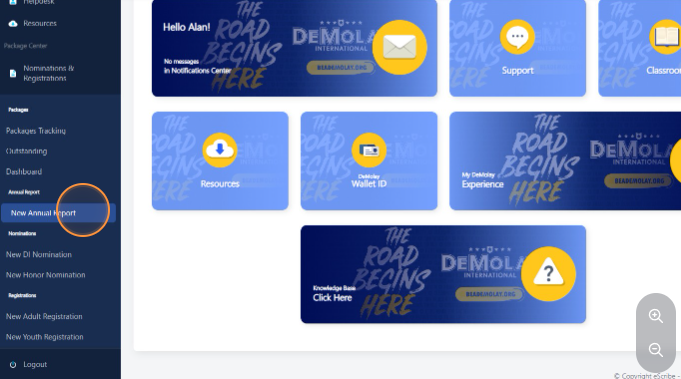
Click "New Annual Report"
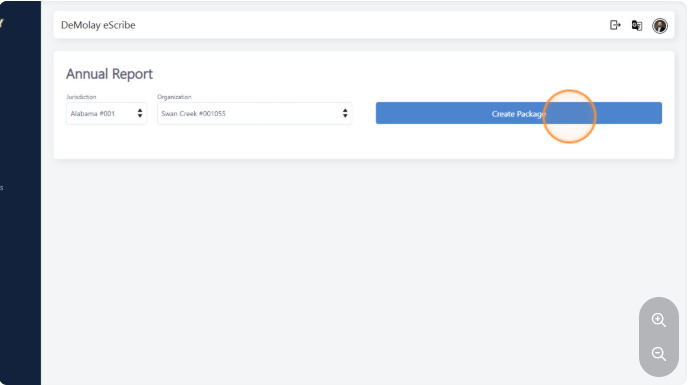
Choose an organization and click on "Create Package".
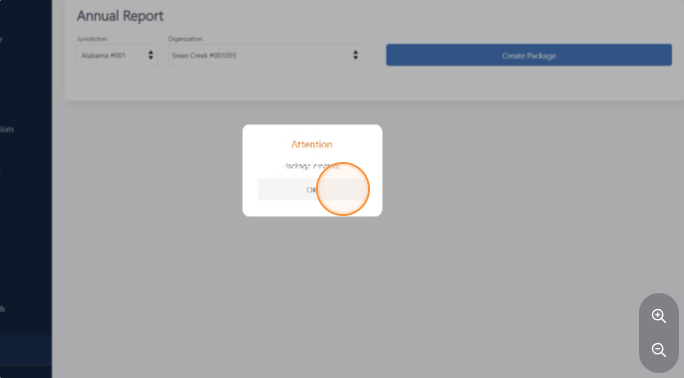
Confirm the action by clicking on "Ok"
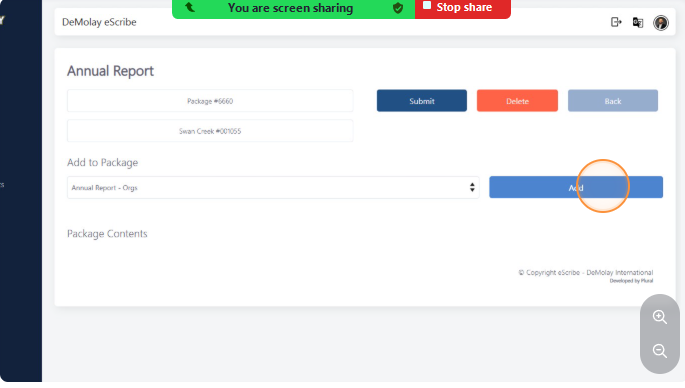
Click on "Add" to fill the annual report form
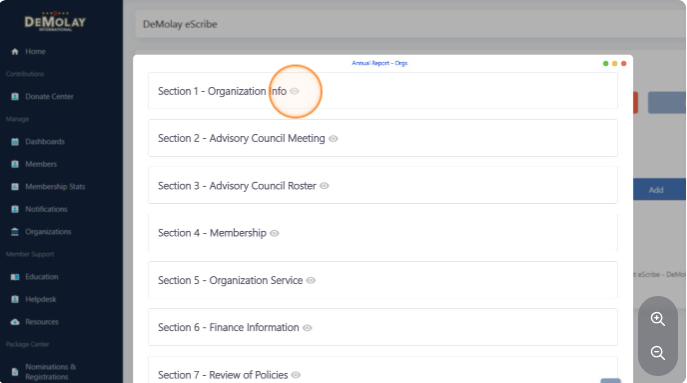
The "eye" icon will expand the sections
The Organization Information displayed in this section is automatically retrieved from your Organization Profile page. If any details shown below are incorrect or outdated, please navigate to the Organization Page to update your records.
Once you have saved your changes on the Organization Page, return to this report to see the updated information.
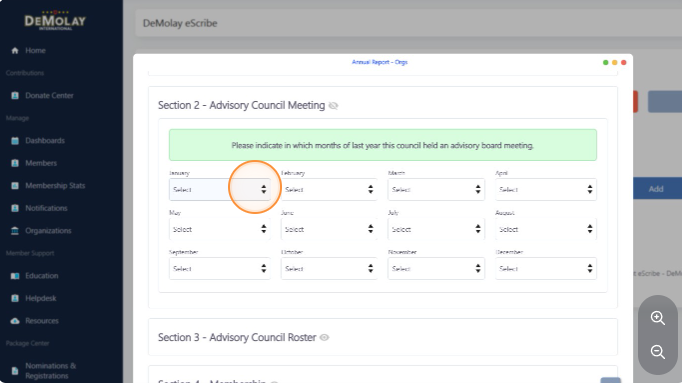
Section 2: Indicate when the advisory council met.
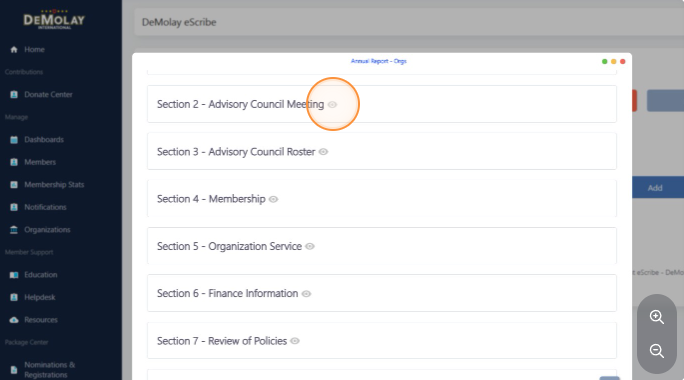
Select the month by choosing "Yes" or "No".
Review the Advisory Council Roster
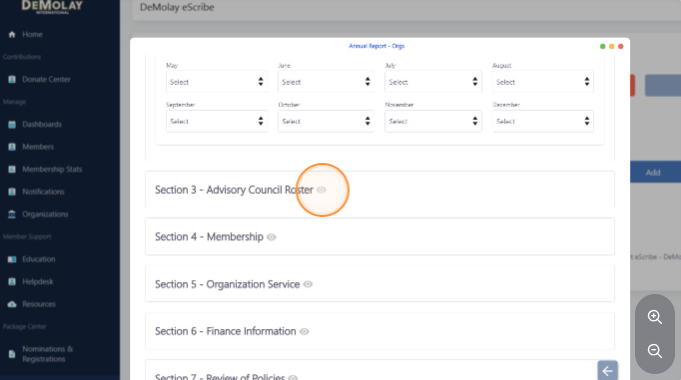
This section displays the historical leadership records for your Advisory Council. You will find the rosters listed for the 3 previous years. These are provided for your reference and to maintain a consistent record of service.
These historical records are pulled from archived data.
Please carefully review the current year roster to ensure that every Advisor is listed and that their assigned roles are accurate, we will not change records after the year is closed.
Section 4: Membership. Respond to the survey by choosing if a member is "Active" or "Inactive".
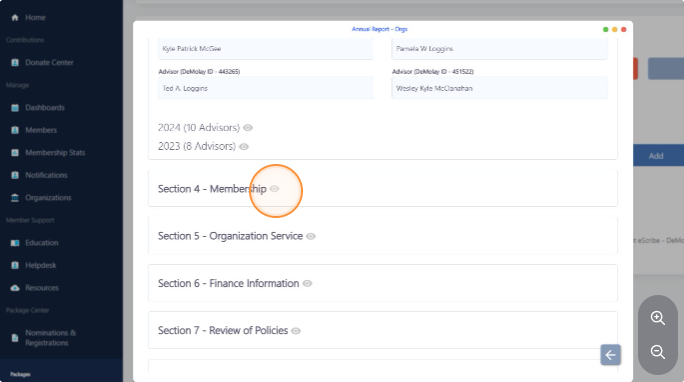
IMPORTANT: This is for internal survey purposes only. The selections made in this section will not change a member's official "Good Standing" status, nor will it remove them from the DeMolay International roster. These labels are used solely to help the Service and Leadership Center understand the actual level of engagement and activity within each local organization.
Active: Select this if the member regularly participates in meetings, events, or organization activities.
Inactive: Select this if the member no longer attends meetings or takes part in activities.
Note: Marking a member as "Inactive" in this report does not change their title as an "Active DeMolay," nor does it affect their eligibility for awards or their right to attend meetings should they choose to return. It is simply a tool for us to measure real-world participation.
Section 5: Organization services. Expand this section and insert all pertinent information if available.
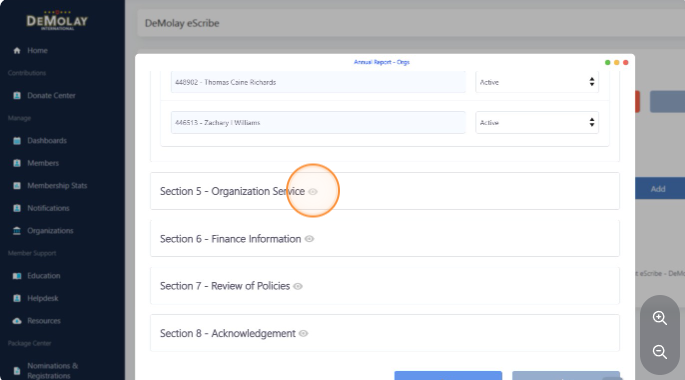
Please use this section to record all member activities, philanthropy, and achievements completed during the reporting year. For each entry, ensure you provide the specific details requested below:
Service Projects: Indicate if the project was General or Masonic in nature. Include the total number of members involved and the total cumulative hours spent.
Philanthropy & Donations: State the name of the receiving organization or cause. Enter the total dollar amount donated and specify the currency type.
Scholarships: Select the recipient from the member roster, provide the name of the scholarship, and enter the total amount awarded (including currency).
External Achievements: Record honors earned outside of DeMolay (such as school, sports, or community awards). Select the member from the roster and provide a brief description of the achievement.
Section 6: Finance information. Expand this area to insert pertinent information regarding the organization financials.
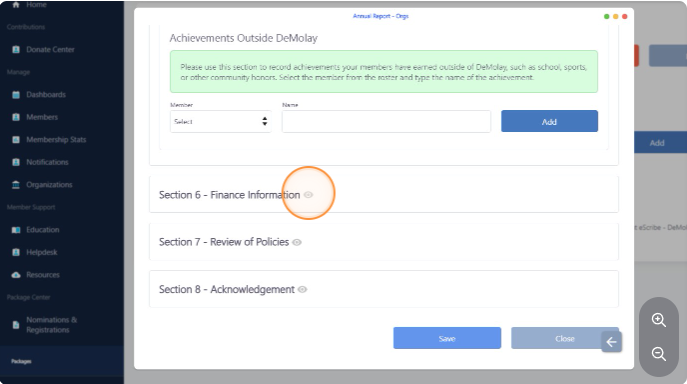
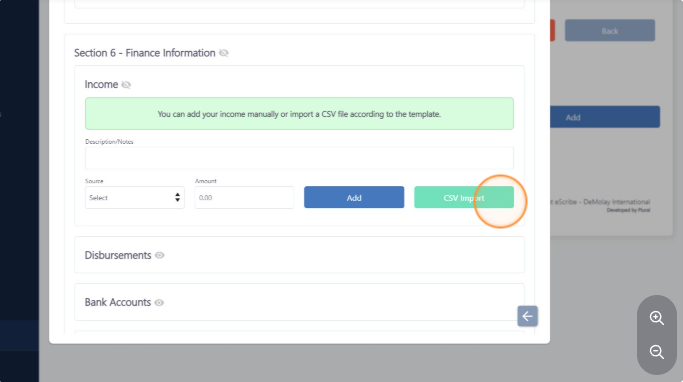
Tip! You can upload entries for your income and disbursement by using a CSV file. Follow the template instruction to accomplish that.
Click on CSV import to see the instructions
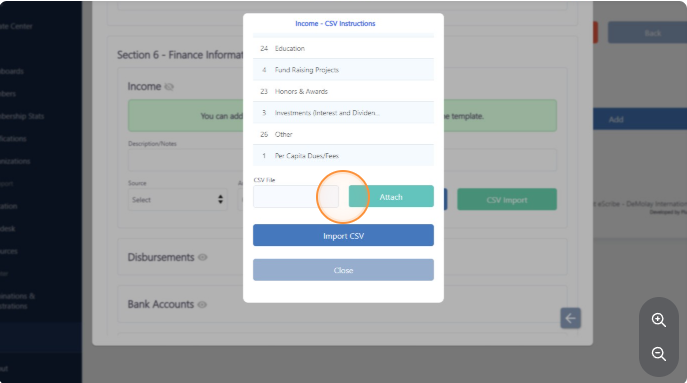
Attach your file and hit import CSV
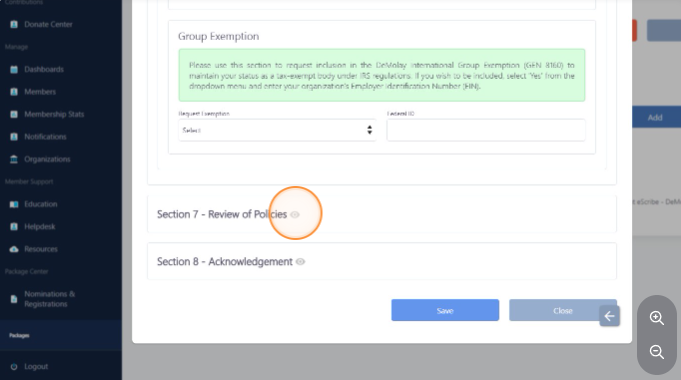
Section 7: Review of Policies. Expand this section to review DeMolay International's policies.
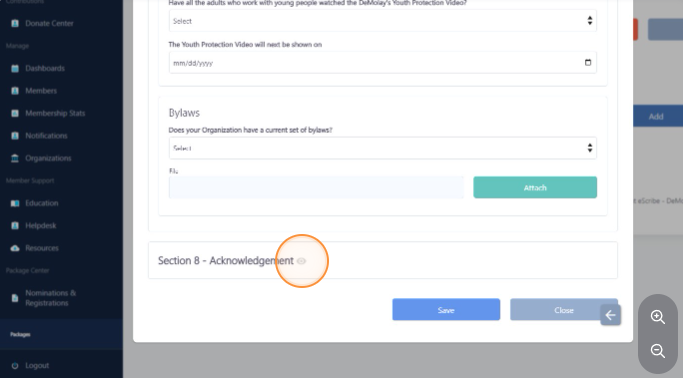
Section 8: Acknowledgement. Read and consent to this acknowledgement.
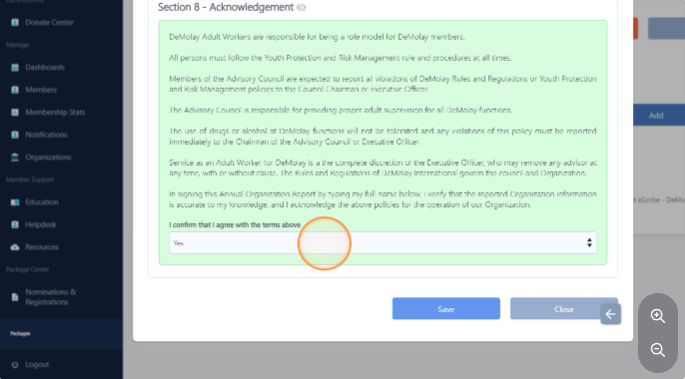
Confirm by selecting the "Yes" option.
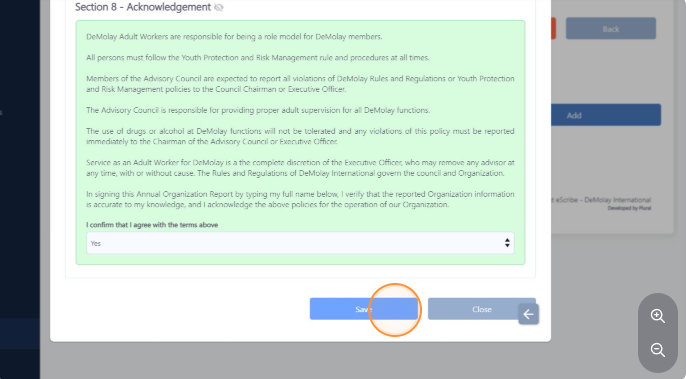
Click the save button
Click Ok to confirm the action
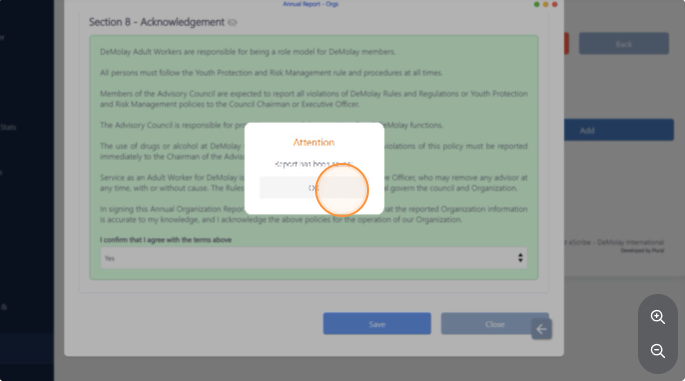
You can save the information and come back to finish it later. However, when submitting the package, all fields will be verified. If any are missing, a notification will appear indicating which section and item must be completed.
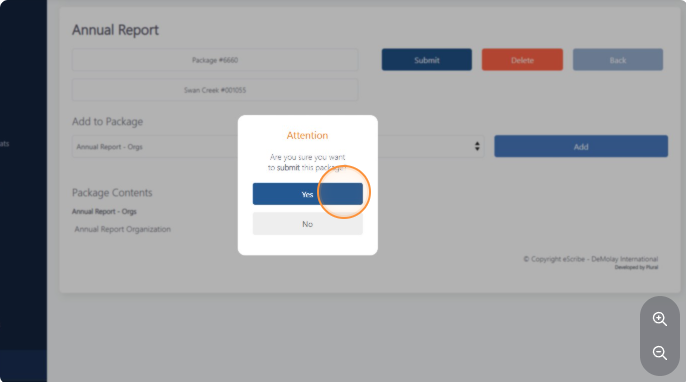
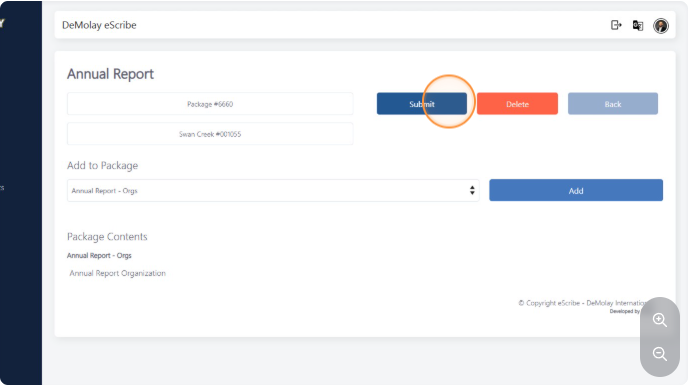
To submit the report, click on "Submit"
Confirm by clicking "Yes" or "No"